Multi Camera Podcast Setup: Equipment, Angles, and Steps
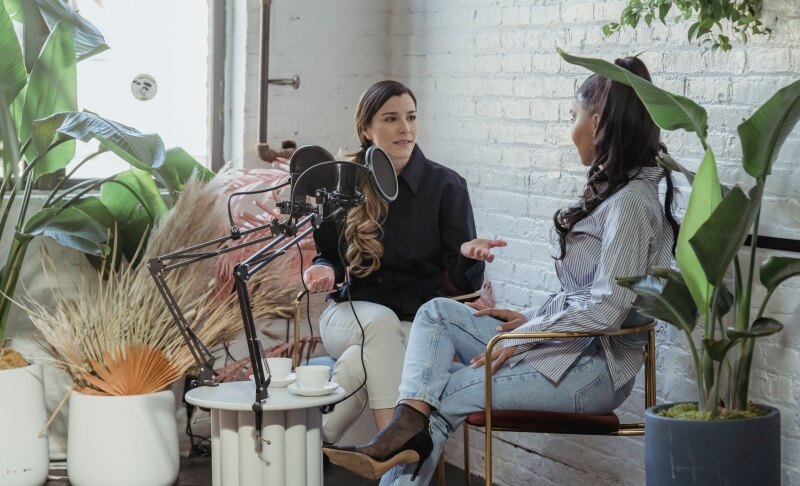
A multi camera podcast setup uses two or more cameras to record different angles simultaneously. For a two-person show, three cameras provide flexible coverage: one wide shot and one close-up per speaker. Two cameras can also work if space or budget is limited. This guide explains the equipment, camera positions, connections, and recording steps you need to capture a complete episode with consistent video and synchronized audio.
Part 1: What Do You Need for a Multi Camera Podcast Setup?
Build your equipment list around your speaker count and recording method. Cameras capture the angles, but microphones, lighting, power, and storage make the system reliable.
| Equipment | Quantity for Two Speakers | What to Check |
|---|---|---|
| Cameras and mounts | 2–3 | Connections, framing, continuous operation |
| Microphones and stands | 2 | Placement and input compatibility |
| Audio interface or recorder | 1 | Enough microphone inputs; isolated recording |
| Soft lights | 1–2 initially | Even coverage across both faces |
| Computer or video switcher | Workflow-dependent | Supported inputs and recording capabilities |
| Cables, power, and storage | As required | Compatibility and episode-length capacity |
Choose Your Camera Count and Coverage
A 2 camera podcast setup can capture an individual shot of each speaker. Alternatively, use one wide shot and one close-up, accepting that the other speaker will appear only in the wide view.
| Configuration | Camera Coverage | Main Trade-Off |
|---|---|---|
| Two cameras | Two singles, or wide plus single | Lower cost; fewer editing options |
| Three cameras | Wide plus two singles | Flexible coverage for two speakers |
| Four cameras | Wide plus individual or shared shots | More inputs and monitoring |
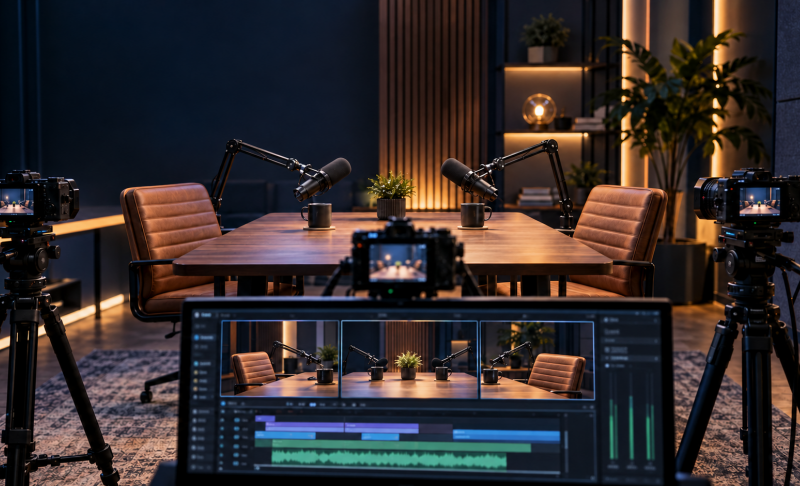
For a podcast 3-camera setup, the wide shot gives you somewhere to cut during laughter, interruptions, or shared reactions. Larger panels can use shared shots rather than adding a camera for every participant.
Select Cameras for Your Workflow
Webcams connect directly to a computer. Smartphones can record locally or feed compatible software. Mirrorless cameras offer lens choices, while compact PTZ cameras offer remote framing control.
Prioritize reliable long-session operation, continuous power, and suitable framing. For HDMI capture, verify clean HDMI output, which removes camera menus and overlays. For multiple USB cameras, check available bandwidth and simultaneous device support.
A 4K podcast camera is useful when you want to crop individual shots or create vertical clips from a wider recording. However, 1080p can be sufficient for a straightforward episode. Matching cameras simplifies color consistency, but mixed models can work with careful adjustment.
Prepare Audio, Lighting, and Accessories
Use one microphone per speaker, connected to an interface or recorder with enough inputs. Record separate microphone tracks where supported so you can adjust voices independently.
For a podcast setup at home, choose a quiet room with curtains, rugs, or other soft furnishings to reduce reflections. Position microphones close enough for clear speech without blocking faces.
Add soft lighting, stable mounts, headphones, and appropriate power adapters. Check storage capacity using your intended recording settings rather than relying on the camera’s resolution alone.
Choose a Recording Method
Your multi camera video podcast setup can follow three main workflows:
| Method | How It Works | Main Consideration |
|---|---|---|
| Local recording | Each camera records internally; audio records separately | Requires synchronization and editing |
| Computer capture | Cameras feed recording or switching software | Depends on capture inputs and computer performance |
| Hardware switching | Cameras feed a dedicated video switcher | Input compatibility and recording features vary |
A program recording contains the finished switched video. ISO recordings preserve individual camera feeds for later editing. Check this distinction before choosing a switcher; recording the program does not automatically mean every angle is saved separately.
Bonus: Best Camera for Multi Camera Podcast Setup - OBSBOT Tail Air Streaming Camera
The OBSBOT Tail Air is a practical choice for podcasters who want flexible camera placement and easier framing control. Use one for a dedicated speaker angle or combine multiple units for host, guest, and wide shots. Its compact design suits home studios, while remote adjustments help you manage framing without repeatedly leaving your seat.
Key Features:
- 4K Video: Capture up to 4K at 30 fps or 1080p at 60 fps, with additional detail for reframing podcast footage.
- AI Human Tracking: Keep a selected speaker in frame as they move, reducing manual camera adjustments during recording.
- Remote PTZ Control: Adjust pan, tilt, and framing remotely. The optional Smart Remote Controller supports control of up to three Tail Air cameras.
- Flexible Connections: Micro HDMI and USB-C support compatible switcher and computer workflows. NDI support enables network-based production with a separately purchased NDI License Key.
- Multi-Camera Workflow: Combine multiple Tail Air cameras with compatible switching software or hardware to capture and switch between different podcast angles.
Part 2: How to Set Up and Record a Multi-Camera Podcast
Step 1: Position Speakers, Cameras, and Lights
Seat both speakers and position their microphones before framing cameras. For three-camera coverage:
- Wide: Show both speakers and enough surroundings to establish the space.
- Host: Frame the host with room for natural movement.
- Guest: Match the host shot’s size and eye level.
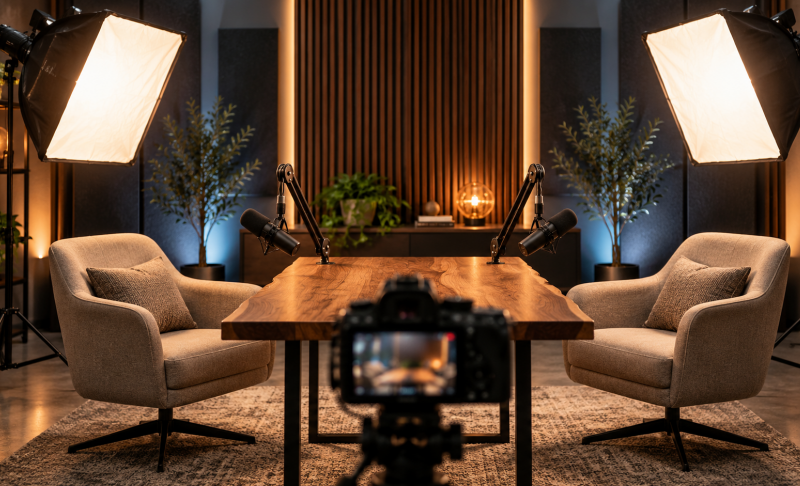
Keep cameras on the same side of the imaginary line connecting the speakers. This helps preserve consistent screen direction when cutting between them.
Place soft lights slightly above eye level and check both faces from every camera. Watch for glasses glare, visible light stands, and microphone arms crossing faces.
Step 2: Connect Video and Audio Sources
Follow the connection path for your chosen workflow:
- Local recording: Prepare each camera’s storage and power. Connect microphones to the audio recorder.
- Computer capture: Connect USB cameras directly or HDMI cameras through compatible capture inputs. Add each camera as a separate video source.
- Hardware switching: Connect cameras to supported switcher inputs, route the microphone mix into the system, and select the recording destination.
Label feeds Wide, Host, and Guest. Monitor each microphone through headphones and confirm the final recording receives the intended mix.
Mute unused camera audio in the program mix to avoid echoes or doubled voices. Retain scratch audio in local camera files when useful for synchronization.
Step 3: Match Settings and Check Focus
Set cameras to the same frame rate and confirm that capture devices support their output formats. For seated conversation, 1080p at 30 fps is a practical starting point.
Match white balance and exposure so skin tones remain consistent between angles. Where possible, lock settings that would otherwise change independently during recording.
Check focus while speakers lean, turn, and gesture. Avoid framing so tightly that normal movement takes someone out of shot.
Finally, verify recording limits, heat behavior, power, and storage for the planned episode length.
Step 4: Synchronize Audio and Test
Set recording audio to 48 kHz where supported. When recording separately, start every device and clap where all cameras can see and microphones can hear it.
Record a short conversation, then review:
- Lip sync on every angle.
- Clear audio without clipping or duplicate sound.
- Stable focus and consistent brightness.
- Complete files from every recording device.
A fixed capture delay may need an audio or video timing adjustment. RØDE’s documentation, for example, describes testing the recording and adding audio delay when video processing arrives later.
Run an episode-length rehearsal before your first production session to uncover heat, storage, or drift problems.
Step 5: Record and Monitor the Session
Confirm every intended recording is running before beginning. During live switching, show the active speaker, hold useful listener reactions, and use the wide shot when people overlap.
Automatic speaker switching requires compatible hardware or software. Supported systems may link microphone activity to camera selection; test interruptions and microphone bleed before relying on it.
Monitor audio levels, focus, recording indicators, and remaining storage. Keep local or isolated backups where supported.
Step 6: Edit and Export
Copy files into clearly labeled folders and create a backup. Align separately recorded clips using the clap or audio waveforms, then build a multicam sequence in your editor.
Use dedicated microphone audio as the main soundtrack and mute redundant camera tracks. Balance voices, correct noticeable color differences, and check synchronization at both ends of the episode.
Export the full episode first. Then reframe selected moments vertically, checking faces and captions throughout each clip.
Part 3: FAQs About Multi Camera Podcast Setup
1. Can You Use Different Cameras for the Same Podcast?
Yes, different cameras can work together. Match frame rates, exposure, and white balance, and verify compatible capture formats. Differences in lenses and image processing may still require correction.
2. Can You Record a Multi-Camera Podcast With Phones?
Yes, phones can record locally or feed compatible capture software. Use stable mounts, sufficient storage, and reliable power. Disable interruptions and test heat behavior before long recordings.
3. Do You Need a Capture Card for Every Camera?
No, you need sufficient capture inputs for the HDMI sources entering your computer. A multi-input device can handle several cameras. Direct USB cameras and cameras recording internally do not need HDMI capture cards.
4. Does OBS Record Every Camera Separately?
Standard OBS recording saves the configured program canvas, rather than automatically creating individual camera files. Separate video recordings require an additional configured solution or local camera recording. OBS’s separate audio-track feature addresses audio isolation, which is a different function.
5. Why Does Audio Go Out of Sync During Long Recordings?
Independent device clocks can gradually drift apart. A clap provides a starting alignment point but does not prevent drift. Test the full recording chain and correct remaining timing differences during editing.
Conclusion
A reliable multi camera podcast setup starts with clear coverage, dedicated microphones, and a tested recording workflow. For two speakers, three cameras offer a useful balance of individual shots and shared coverage, while two cameras keep equipment requirements lower. Match settings, confirm every recording path, and complete a full rehearsal before filming an episode. Expand your system when you need additional coverage or control.