How to Start a Twitch Stream: 3 Easy Methods for Beginners

Twitch is one of the best options for live streaming. It is popular among gamers and content creators because people watch games, tutorials, music performances, and live discussions. This means starting your own Twitch stream means you can share your content and build your own community. However, people don't start their streams because they don't know how to start a Twitch stream. In case you are in the same boat, we are sharing different methods that you can follow.
Method 1: Start a Twitch Stream with Twitch Studio
Twitch Studio is Twitch's official streaming software. It is designed for beginners and includes simple setup tools, built-in layouts, and automatic hardware detection. So, let's see how to start streaming on Twitch.
Step 1: Download Twitch Studio from the official Twitch website and install it on your computer. Open the program and log in using your Twitch account.
Step 2: Complete the automatic setup process. Twitch Studio will check your internet connection and detect your webcam, microphone, and other connected devices.
Step 3: Select a stream template or create your own layout. Add your webcam, microphone, alerts, and chat panel if needed.
Step 4: Choose the game you want to broadcast by adding a Game Capture source. Make sure the game is running before selecting it.
Step 5: Review your audio levels and video settings. Adjust the quality if necessary to match your computer and network performance.
Step 6: Enter a stream title, select the correct category, and choose suitable tags so viewers can discover your livestream.
Step 7: Click Start Stream, launch your game, and begin interacting with your audience through Twitch chat.
Method 2: Start a Twitch Stream with OBS Studio
If you are wondering, "How do I start streaming on Twitch?" OBS Studio is a free broadcasting program. It offers extensive customization. It is suitable for creators who want more control over their livestream appearance.
Step 1: Download OBS Studio from the official website and install it on your Windows, Mac, or Linux computer.
Step 2: Open OBS Studio and click the + button in the Scenes section to create a new scene for your broadcast.

Step 3: Click the + button in the Sources panel and add a Game Capture, Window Capture, or Display Capture source to show your gameplay.

Step 4: Add extra elements such as your webcam, microphone, browser alerts, images, and overlays to personalize your stream.
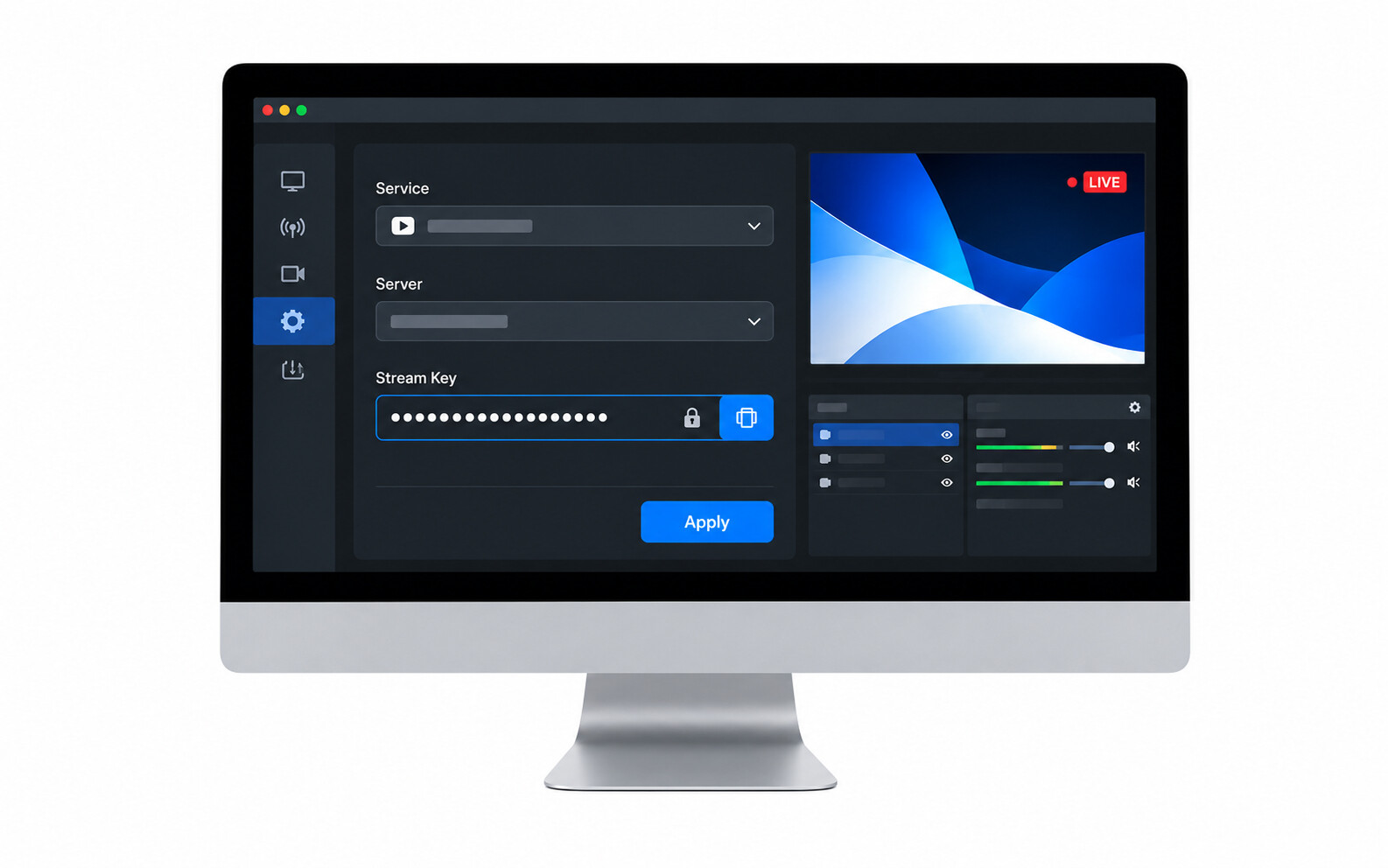
Step 5: Open Settings, select Stream, choose Twitch as the streaming service, and connect your Twitch account or paste your stream key.

Step 6: Configure your resolution, frame rate, bitrate, and audio settings according to your system specifications and upload speed.
Step 7: Click Apply, open your game, and monitor your chat while broadcasting live.
Method 3: Start a Twitch Stream with Lightstream Studio
Lightstream Studio is a cloud-based streaming platform that lets creators produce professional broadcasts without requiring powerful computer hardware. It is a good option for people who wonder how do you start streaming on Twitch using Lightstream Studio.
Step 1: Visit the Lightstream website, create an account, and connect it to your Twitch profile.

Step 2: Create a new project and choose a streaming layout that matches your content style.
Step 3: Add your gameplay source, webcam, microphone, and any graphics or overlays you want to include.
Step 4: Customize your stream by arranging scenes, resizing video sources, and adding transitions between layouts.
Step 5: Check your microphone volume, camera position, and internet connection before going live.
Step 6: Enter your stream information, including the title, game category, and viewer tags, inside your Twitch dashboard.
Step 7: Click Go Live in Lightstream Studio and start sharing your gameplay with Twitch viewers.
Bonus: Best Camera for Twitch Streaming- OBSBOT Tiny 3 Lite 4K PTZ Webcam
Creating a successful Twitch stream starts with clear video and dependable performance once you know how to start a Twitch broadcast. The OBSBOT Tiny 3 Lite integrates AI-powered tracking, professional imaging, and high-quality audio in a compact webcam. It works smoothly with popular streaming platforms, making it an excellent choice for beginners and experienced Twitch creators alike.
Key Features:
- Excellent Streaming Performance: Produce professional-looking Twitch broadcasts with 4K@30fps for detailed visuals or use 1080p@120fps for fast-moving action.
- Strong Imaging System: The 1/2-inch CMOS sensor and ISO up to 6400 capture bright footage with accurate focus and balanced lighting during Twitch streams.
- Immersive Audio System: Built with a three-microphone stereo array supporting 24-bit/48kHz audio, it delivers a clear voice for Twitch commentary and live interaction.
- Hands-Free Voice Control: Control the webcam using voice commands such as powering it on or off and adjusting zoom to help Twitch streamers manage the camera easily.
- Intelligent Framing: Auto Zoom, Face Framing, Composition Lines, and Group Tracking automatically adjust the camera view to keep your Twitch stream well-composed.
FAQs About How to Start a Twitch Stream
1. Do I need a Twitch account before streaming?
Yes, you must create a Twitch account, verify your email, enable two-factor authentication, and complete your channel profile before you can begin broadcasting from any supported streaming software or platform.
2. Can I stream on Twitch without a webcam?
Yes, a webcam is optional for Twitch streaming. Many creators broadcast gameplay with only a microphone, although adding a camera can improve audience engagement and help viewers connect with your content.
3. Which streaming software is best for beginners?
Twitch Studio is generally the easiest choice because it offers guided setup, automatic optimization, and built-in templates. OBS Studio provides greater flexibility, while Lightstream Studio works well for cloud-based streaming without powerful hardware.
4. Can I edit my Twitch stream title after going live?
Yes, you can change your stream title, category, tags, and other broadcast information during a livestream through the Twitch Creator Dashboard without stopping your stream or interrupting your viewers' watching experience.
5. Can I stream from a laptop instead of a desktop computer?
Yes, many laptops can stream successfully if they meet the software requirements and have sufficient processing power, memory, and a reliable internet connection for stable video and audio performance.
Conclusion
Launching your first Twitch stream becomes much easier when you choose software that matches your experience and equipment. Twitch Studio offers a beginner-friendly experience, OBS Studio provides complete creative control, and Lightstream Studio delivers cloud-powered convenience. Before every session, confirm that your video, microphone, and network settings are working properly once you learn how to start a Twitch stream. Regular streaming, clear production quality, and active communication with viewers can help you create an enjoyable channel that continues to attract new followers over time.