How to Multistream on TikTok and YouTube
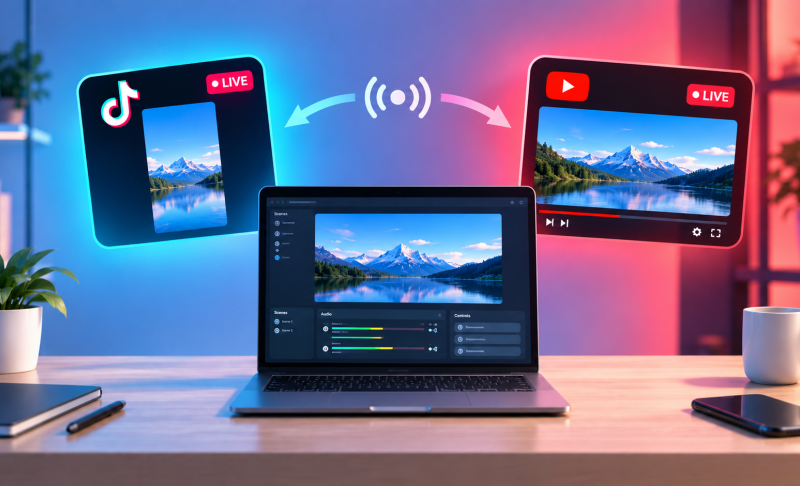
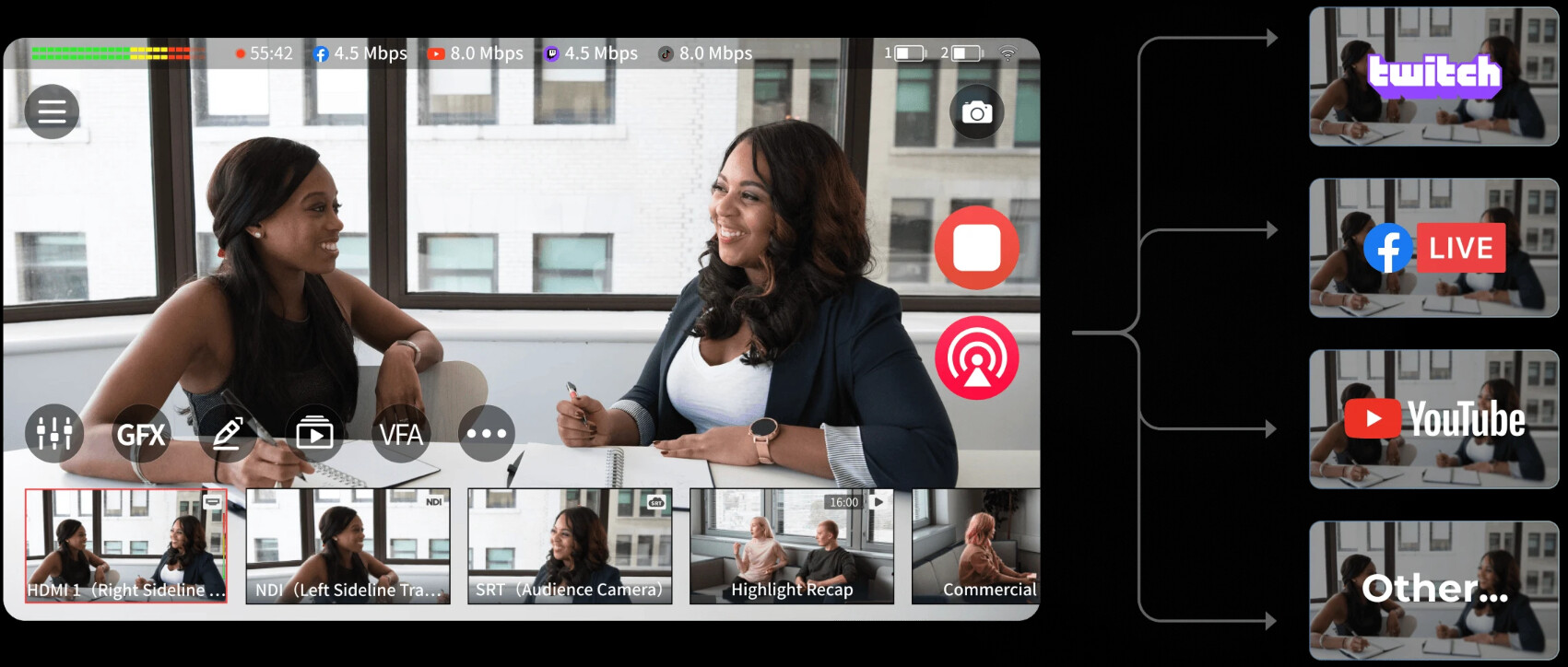
How to multistream on TikTok and YouTube is simple once you have live access on both platforms and choose the right streaming method. You can use a cloud multistreaming service, OBS with a multistream plugin, or separate vertical and horizontal outputs. This guide covers the setup, recommended settings, aspect ratio options, and common issues so you can start broadcasting to both platforms at the same time.
- What You Need Before You Multistream on TikTok and YouTube
- Choose a Method to Multistream on TikTok and YouTube
- Multistream on TikTok and YouTube Using a Multistreaming Service
- Multistream on TikTok and YouTube with OBS
- How to Handle Vertical and Horizontal Video
- Best Practices for TikTok and YouTube Multistreaming
- Troubleshooting Common Multistreaming Problems
- FAQs About How to Multistream on TikTok and YouTube
What You Need Before You Multistream on TikTok and YouTube
1. Check TikTok LIVE and Stream Key Access
Make sure your TikTok account has LIVE access and, if required, a Server URL and Stream Key for external streaming. Access requirements may vary by account and region.
2. Check YouTube Live Access
Enable live streaming on your YouTube channel, then find your Stream URL and Stream Key in YouTube Studio > Create > Go Live > Stream.
3. Hardware, Internet, and Software Checklist
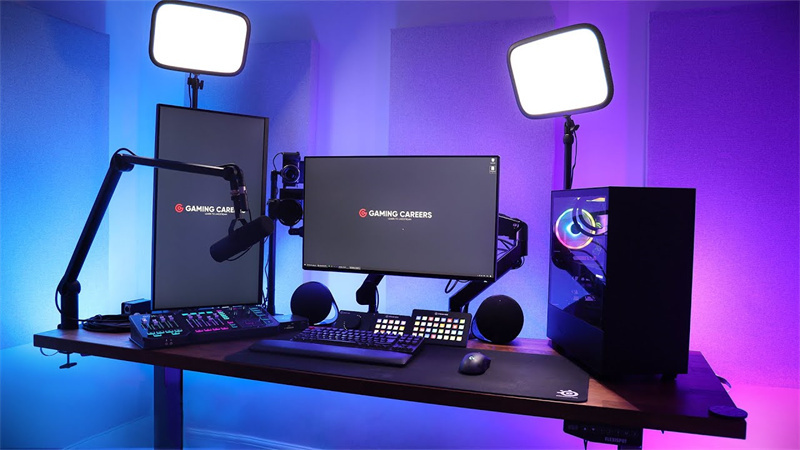
- A computer, camera or webcam, and microphone
- Stable upload bandwidth
- OBS or a cloud multistreaming service
- TikTok and YouTube accounts with live access
A cloud service sends one stream from your computer, while local multistreaming sends separate streams and requires more upload bandwidth.
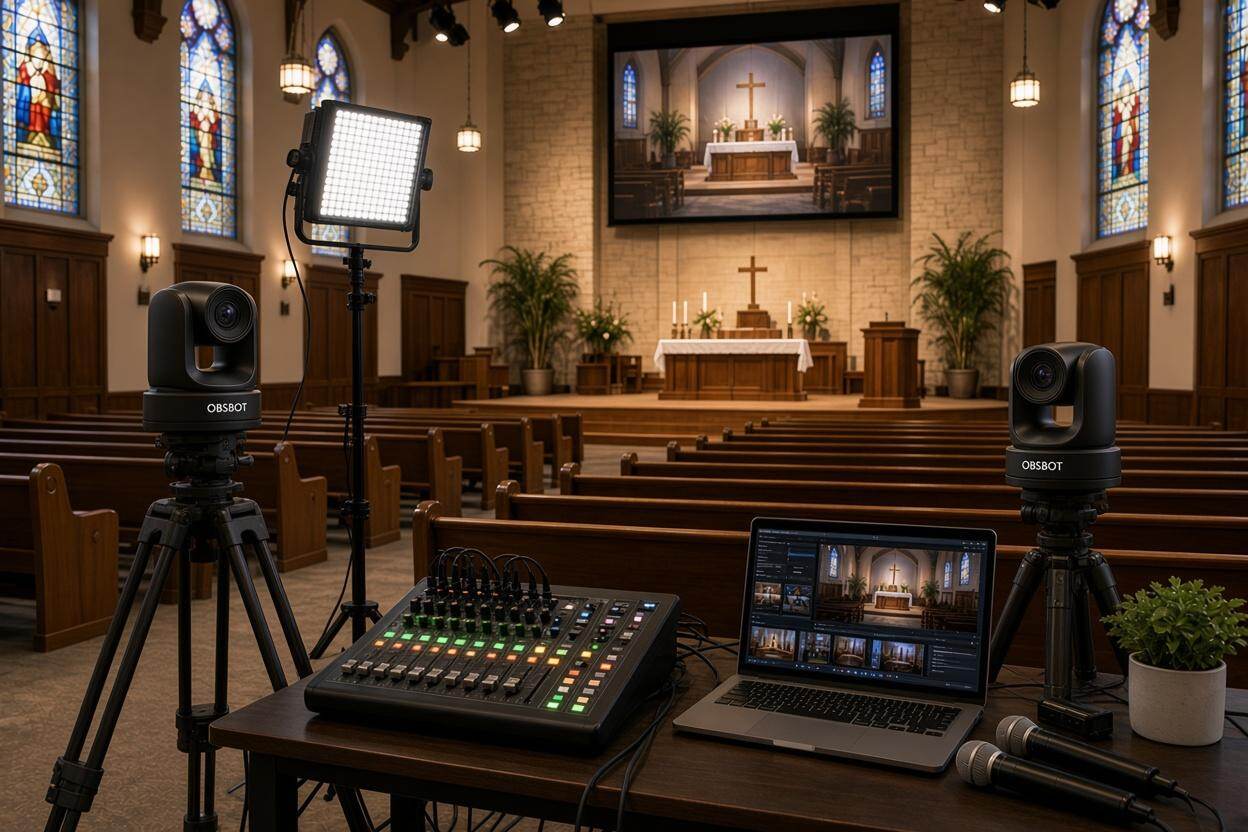
Bonus: Best Camera for Multistreaming - OBSBOT Tail Air Streaming Camera
If you stream on multiple platforms, OBSBOT Tail Air can simplify your workflow by letting you control camera movement and framing remotely during a live broadcast. This is especially useful for creators who switch between talking, demonstrations, and different on-screen positions, since you can adjust the shot without interrupting the stream. It is a practical choice for building a flexible streaming setup for TikTok, YouTube, and other platforms.
Key Features:
- UHD 4K Video: Capture sharp, detailed footage in 4K at 30 FPS or 1080p at 60 FPS.
- AI Tracking: Automatically tracks humans, animals, and objects to keep your subject in frame.
- Versatile Shooting Scenarios: Adapt to different streaming and video production scenarios with flexible camera positioning.
- Powerful Multi-Camera Setup: Build a more dynamic production with multiple camera angles and perspectives.
- Low-Light Performance: Capture clearer, more detailed footage even in challenging low-light environments.
Choose a Method to Multistream on TikTok and YouTube
| Method | Best for | Advantage | Limitation |
|---|---|---|---|
| Cloud multistreaming service | Beginners | Simple setup | Some services require payment |
| OBS + cloud service | Creators using OBS | More production control | Requires a third-party service |
| OBS + local plugin | Advanced users | No cloud relay required | Higher bandwidth and system load |
For beginners, a cloud service is usually the simplest option. If you already use OBS, combining it with a cloud service gives you more control while keeping the upload workload relatively low.
How to Multistream on TikTok and YouTube Using a Multistreaming Service
Step 1: Connect YouTube. Sign in to your chosen multistreaming platform and authorize your YouTube channel. Set the stream title, description, privacy, and other available settings.
Step 2: Connect TikTok. Add TikTok as another destination. If the service uses custom RTMP, enter the TikTok Server URL and Stream Key provided through your TikTok streaming tools. Keep the stream key private.
Step 3: Configure the stream. Select your camera, microphone, resolution, frame rate, and bitrate. You can use one shared layout or create separate outputs for TikTok and YouTube.
Step 4: Test both destinations. Check the video, audio, framing, and connection before starting the actual broadcast.
Step 5: Go live. Start the broadcast through the multistreaming service and monitor both platforms during the stream.
How to Multistream on TikTok and YouTube with OBS
OBS provides more control over scenes, sources, overlays, audio, and output settings.
Step 1: Set up your OBS scene. Add your camera, microphone, screen or game capture, and overlays. For a standard YouTube broadcast, a 1920 × 1080, 16:9 canvas is a practical starting point.
Step 2: Connect OBS to a cloud multistreaming service. Go to OBS > Settings > Stream and enter the server information and stream key provided by the service. Then add TikTok and YouTube as destinations in the service dashboard. Your computer sends one stream, while the service distributes it.
Step 3: Use a local multistream plugin if needed. Install a compatible multiple-RTMP output plugin, then add TikTok and YouTube as separate destinations. Enter the required server URLs and stream keys for each platform.
Step 4: Check your upload bandwidth. Local multistreaming requires enough bandwidth for all outgoing streams. For example, a 6 Mbps YouTube stream plus a 4 Mbps TikTok stream requires about 10 Mbps of combined upload bandwidth, with additional headroom recommended.
Step 5: Test the output. Run a short test and check dropped frames, CPU/GPU usage, audio, and video quality before going public.
Recommended OBS Settings
Use each platform's current recommendations as the final reference, but these settings provide a practical starting point:
| Setting | Starting point |
|---|---|
| Resolution | 1920 × 1080 |
| Frame rate | 30 or 60 FPS |
| Rate control | CBR |
| Keyframe interval | 2 seconds |
| Encoder | Hardware encoder such as NVENC |
| Audio | AAC, 48 kHz |
If your computer or connection struggles, lowering the bitrate or resolution is better than maintaining settings that cause dropped frames.
How to Handle Vertical and Horizontal Video
The main production challenge is making one broadcast work well across different screen formats. YouTube commonly uses 16:9 horizontal video, while TikTok is designed primarily for 9:16 vertical viewing.
Option 1: Use One Horizontal Stream for Both
This is the simplest approach. Create one 16:9 scene and send it to both platforms.
Keep the main subject and important graphics near the center of the frame. This works particularly well for talking-head streams, interviews, presentations, and other content where the main subject stays centered.
The downside is that a horizontal layout may not make full use of TikTok's vertical screen.
Option 2: Create Separate 16:9 and 9:16 Outputs
For a more optimized TikTok streaming and YouTube streaming experience, create two layouts.
- YouTube: 16:9 horizontal
- TikTok: 9:16 vertical
Instead of simply cropping the horizontal scene, reposition the camera, gameplay, product, or graphics for the vertical canvas. This gives each platform a layout designed for its viewing format.
Dual-output tools or compatible OBS plugins can handle the two canvases, although this setup requires more configuration and may increase system resource usage.
Option 3: Use TikTok LIVE Studio with OBS
If TikTok LIVE Studio is available to your account, you can use OBS for your main production and route its output through a virtual camera to TikTok LIVE Studio while OBS handles YouTube.
This can provide another way to manage different platform outputs, but it adds an extra step to the workflow and may require additional configuration.
Best Practices for TikTok and YouTube Multistreaming
A few simple checks can make the broadcast more reliable:
- Test both platforms before going live. A short test can reveal framing, audio, and connection problems.
- Prioritize audio quality. Check microphone levels and synchronization before the broadcast.
- Keep important content visible. This is especially important when using a horizontal layout for TikTok.
- Use a stable connection. Wired Ethernet is preferable when available.
- Monitor both platforms. Use a second screen or moderator to watch comments and stream status.
- Keep platform requirements separate. Do not assume that one bitrate, resolution, or access rule applies equally to both services.
Troubleshooting Common Multistreaming Problems
| Problem | Likely cause | Fix |
|---|---|---|
| TikTok stream key unavailable | Account lacks required access | Check the LIVE and external streaming options available to your account |
| Stream key does not work | Key was reset, expired, or copied incorrectly | Check the current key and update your encoder |
| YouTube shows no data | Incorrect server URL/key or no outgoing signal | Recheck YouTube Studio and OBS settings |
| Stream drops frames | Insufficient upload bandwidth or encoder load | Lower bitrate/resolution or use a cloud relay |
| TikTok video looks cropped | 16:9 output is being used without a vertical layout | Create a dedicated 9:16 scene |
| Audio is missing or delayed | Incorrect source or audio routing | Check the OBS mixer and output settings |
| One platform has lower quality | Different output requirements | Check the recommended settings for each destination |
FAQs About How to Multistream on TikTok and YouTube
1. Can I stream to TikTok and YouTube at the same time for free?
Yes, in some setups. OBS with a compatible multistream output plugin can send streams to multiple destinations without a paid cloud service. However, you still need the required TikTok access and enough upload bandwidth.
2. Can I multistream from my phone?
A phone-only setup is more limited than a desktop encoder setup. Standard mobile LIVE does not automatically provide a feed that can also be sent to YouTube. For synchronized multistreaming, a desktop encoder or supported third-party service is generally more practical.
3. Can I use the same camera for TikTok and YouTube?
Yes. One camera can provide the source for both platforms. The difference comes from how the source is arranged in each output. A separate 9:16 scene can reposition the same camera feed for TikTok while YouTube continues using a 16:9 layout.
4. Can I see TikTok and YouTube chats in one place?
Sometimes. Some multistreaming services provide unified chat features, but support varies by platform and service. If unified chat is unavailable, use separate browser windows, a second monitor, or a moderator to monitor both platforms.
5. Can I multistream to TikTok, YouTube, and Twitch at the same time?
Yes. The same cloud-based or local OBS workflow can support additional destinations, provided your streaming service, account access, computer, and upload bandwidth can handle them.
Conclusion
How to multistream on TikTok and YouTube starts with confirming live-streaming access, choosing a cloud or OBS-based method, and connecting both destinations. For the simplest workflow, use a cloud multistreaming service; for more control, use OBS with separate outputs. Before your first public broadcast, test the connection, audio, and video format on both platforms.